Should you want to assign this report to a campaign you can do so by selecting 'By Campaign' under 'Assign report'.

This will assign the campaign to each shift in that campaign as the system worked before, 1 survey to 1 shift. The benefit now is that you can have multiple reports added to the same campaign.
You now have more permissioning options to complete as part of this report type:

- Give access by staff tag - if you want to limit who can see and fill out this report by staff tags add the tags required in here
- Give access by staff role - if you want to limit who can see and fill out this report by staff roles add the roles required in here
- Give access by staff - if you want to limit who can see and fill out this report by exact staff add the staff required in here
If you need the report to be available at a certain time you can do this in the 'Availability' section. These exact options are only available for this type of report.
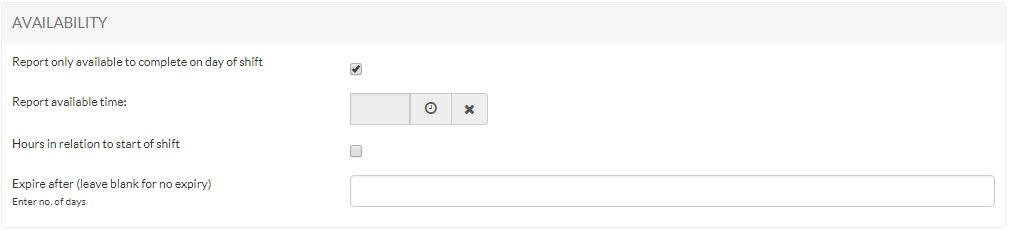
- Report only available to complete on day of shift - select this if you just want the report to be only able to fill out on the actual day of their shift. The next options (points 2-5) will then become visible.
- Report available time - Enter a time here for an exact time of day for the report to become available
- Hours in relation to start of shift - Tick this to enable the report to become available after a certain amount of hours after their shift start time. Point 4 below will them become available to you.
- Enter no. of hours - This is where you specify the number of hours in which the report will become available from the start of their shift
- Expire after - Enter the number of days in which the report will expire and dissappear after the shift date. Leave this blank for the report not to expire.
Was this article helpful?
That’s Great!
Thank you for your feedback
Sorry! We couldn't be helpful
Thank you for your feedback
Feedback sent
We appreciate your effort and will try to fix the article